

GUIDE
From zero to searching
Six steps. The first four are mechanical and done once; the fifth is the one that really decides what your customer finds.
Install the module
From the back office: Modules → Module manager → Upload a module, and you drop in the zip. No console, no composer, no touching your theme's files.
/modules/ unzipped and it will appear in the list just the same.Connect to the service
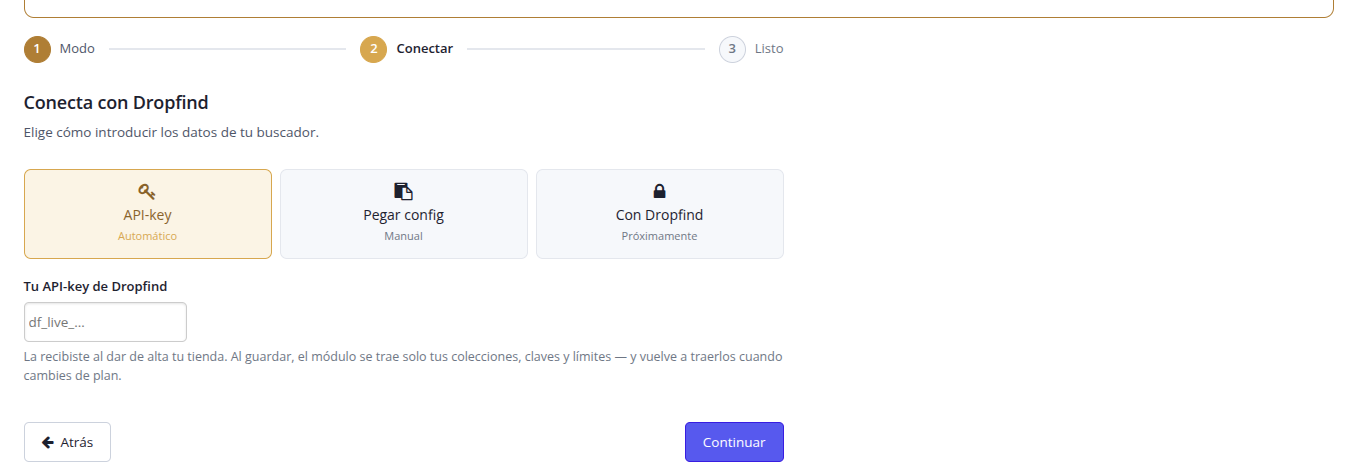
When you open the configuration a three-step wizard greets you: Mode → Connect → Done.
In Mode you choose between the managed service —the usual— or your own Typesense if you have one set up.
In Connect you paste your key. You generate it from your Dropfind panel, in the Connect my shoptab: it is shown only once, so generate it right when you are about to paste it. With it, the module works out the rest by itself.
The module detects your languages. You do not have to tell it which ones or what number your PrestaShop has them under: it reads them from your shop and prepares one index for each. If you have more languages than your plan allows, it shows them with checkboxes so you can choose which to index — the ones you do not tick will carry on working with PrestaShop's search.

Index the catalogue
In the Index, "Reindex". The first pass goes through the whole catalogue and can take a few minutes depending on how many products and languages you have.
From then on there is nothing to touch: changes sync by themselves.

Schedule the task (this one is not optional)
The module needs a scheduled task to keep syncing changes. In the Index tab you have the exact URL, with its token, ready to copy. In your hosting's panel it is added like this:
*/5 * * * * curl -s "https://yourshop.com/modules/dropdownsearch/cron.php?token=…"
Decide how it looks and what rules
The rest are decisions, not requirements. The four that change the result most:
- Integration — whether it hooks into your theme's search box or builds its own.
- Appearance — colours, logo, and whether results come out as a grid or a list.
- Relevance — how much each field weighs. If reference is what rules in your shop, raise it.
- Behaviour — from how many letters it searches and which prices it shows.

If something is not working
Four things explain almost everything you ask us.
I search for a product that does exist and it does not come up
Almost always it is the cron. If it is not scheduled, the index stayed frozen on the day you reindexed: anything you added or changed afterwards is not in there. Check it in Index → "Reindex products": if it appears after reindexing, that was it.
If it was not the cron, check whether the product is active and visible in the shop and in the language you are searching in. The index only contains what the catalogue publishes.
My key does not work
Keys are shown only once and generating a new one voids the previous. If you copied one and then generated another, the one you have pasted into the module is no longer valid: go into your panel, generate another and paste it.
Check too that it starts with df_live_ and that you copied all of it.
It tells me my languages do not fit
Your shop has more active languages than your plan allows. The module shows them with checkboxes so you can choose which to index: the ones you do not tick will carry on working with PrestaShop's search.
We do not choose for you on purpose. Only you know which ones sell for you.
The search has stopped appearing
Check three things, in this order: that "Search enabled" is still ticked in Connection; that your account is not suspended or expired; and that you have not used up the month's quota. In all three cases the shop goes back to PrestaShop's search rather than being left without a search box.
Every tab, in detail
The above leaves the search running. This is for when you want to fine-tune it.
Connection
It is the tab everything else hangs from.

Search enabled. Turning it off does not uninstall anything nor stop the indexing: the catalogue keeps being kept up to date because the same index feeds Dropfind Filters. Use it if you only want the filters, or while you are testing.
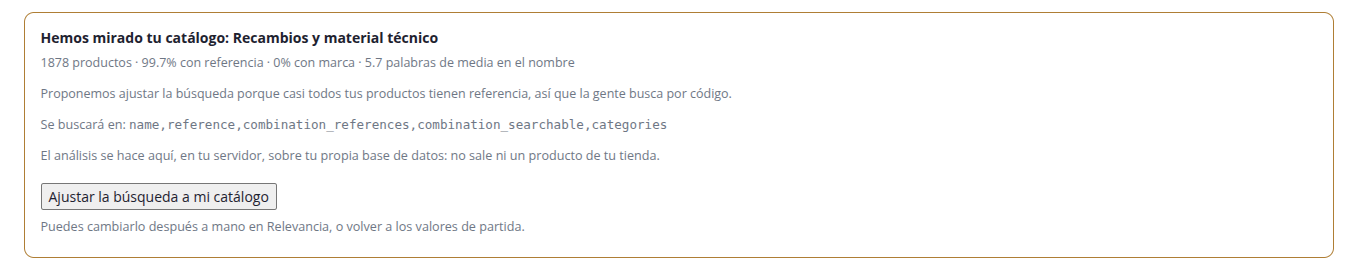
Fit to catalogue. The module looks at your catalogue —how many products have a reference, how many a brand, how long the names are— and proposes what should weigh more when searching. The analysis is done on your server, over your database: not one product leaves your shop. You can accept it with one click or ignore it and adjust it by hand in Relevance.
When the quota runs out you decide what happens when the month's requests are used up: carry on searching with PrestaShop's search —recommended— or take the search box away.
Appearance
Panel format, colours, and which data is shown in each result.

The desktop and mobile views go separately, because they do not behave the same: on a narrow screen the grid leaves very small columns of cards, and a list usually suits better even if you prefer a grid on desktop.
"Add to cart" only appears on products without variants. If the product has sizes, colours or any combination, the button leads to the product page: the buyer has to choose first.
Integration
Decides whether the search hooks into your theme's search box or builds its own. Hooked in it feels part of the shop; with its own box you do not depend on how the theme is built. If the selector finds no field, its own box is used automatically, so you cannot end up with no search by getting this wrong.
Relevance
The most powerful lever and also the easiest to break. Change one thing at a time and check it with real searches from your shop.
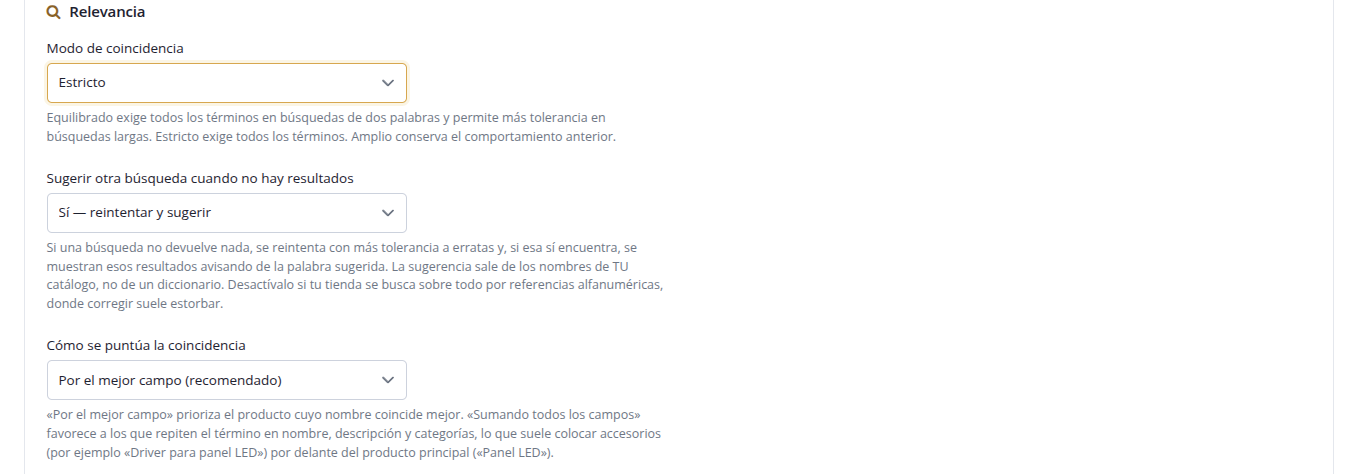
Matching mode. "Balanced" requires all terms on two-word searches and tolerates more on long ones. "Strict" always requires all of them. "Broad" is the most permissive.
Suggest another search when there are no results: if a query returns nothing, it is retried with more tolerance and you are told what was searched for instead. Those are the "rescued searches" you then see in your panel.
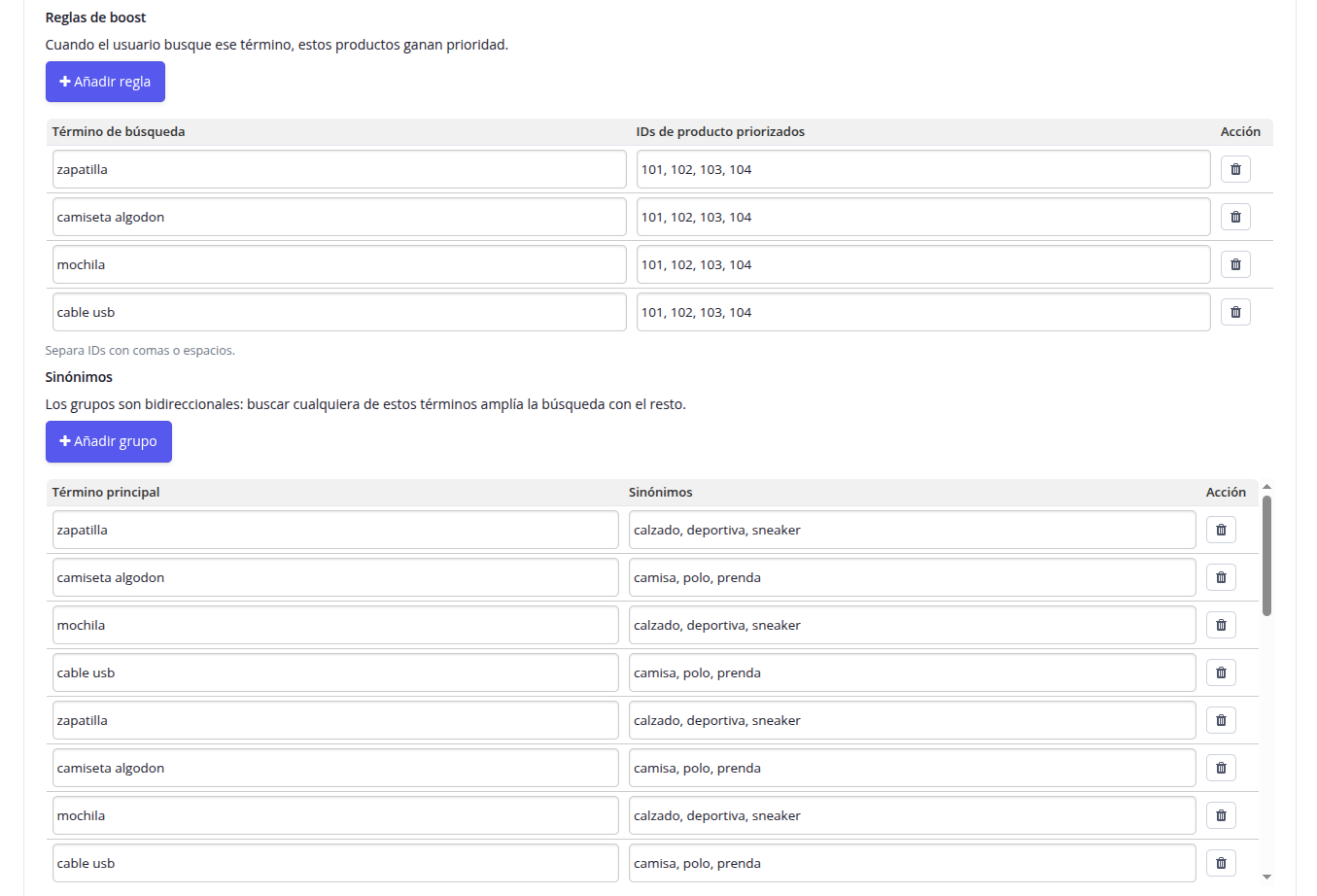
Priority rules. For a given term, which products should come out on top. Useful when you know that whoever searches for "X" wants exactly these.
Synonyms. They are two-way: searching for any of the group's terms widens the search to the rest. This is where the words your customers use and your catalogue does not get resolved.
Behaviour and Content
In Behaviour sets from how many letters it starts searching, how long it waits while you type and how many results it brings per page. In Content you decide what is shown when nothing has been typed yet and what appears if a search finds no results.
Index
Reindexing, the scheduled task, and the cache.
The cache stores the result of the same search with the same settings. You spend far fewer of your plan's requests and answers come out sooner; in exchange, a product just changed can take up to the stated duration to appear. Prices and stock are never cached: they are worked out on every visit, so prices per customer group stay correct.
Analytics
A summary of the last 30 days inside the back office itself. The full detail —evolution, products, comparisons— is in your Dropfind panel.
The two tables that move the most money are no results —people who wanted to buy and did not find— and rescued, which are words your catalogue does not recognise and are worth adding as a synonym.
Look at what people search for
In your Dropfind panel you have the day-by-day evolution, the products clicked most from the search, the searches no results and the ones that rescued themselves by correcting a typo.
You get in with your email, no password: you ask for a link and it arrives in your inbox.
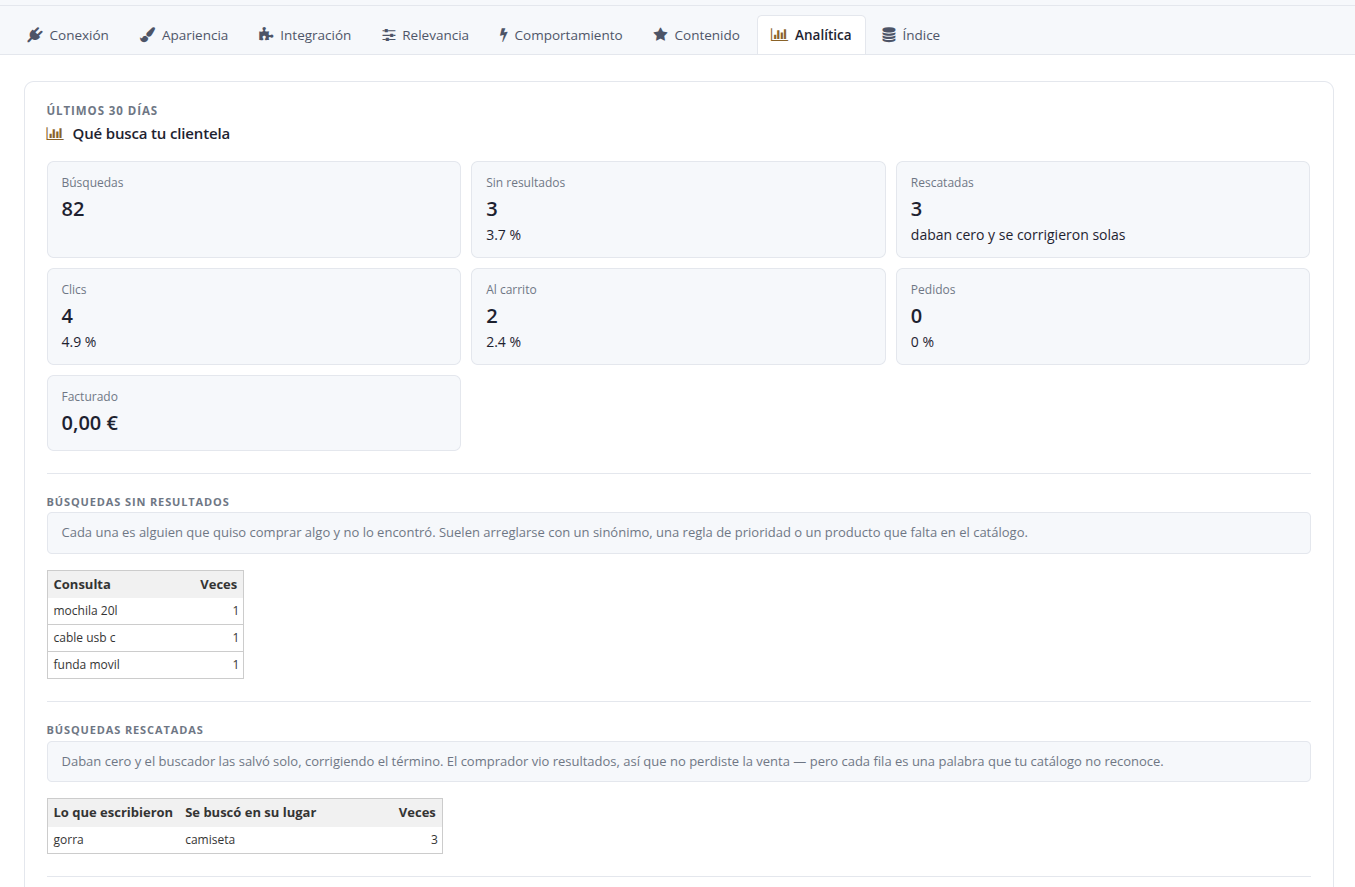
And once it is working
After a few days, the Analytics tab starts having something to say. The figure that pays off most is searches with no results: it is the literal list of what your customers came to buy and did not find —either because you do not have it, or because you call it something else.
The second is fixed in a minute with a synonym. The first is purchasing information.